Quick Answer (TL;DR)
Hubstaff tracks every single second of your work session for keyboard and mouse input, summarizing these data points into an activity percentage score for each 10-minute segment. Essential daily tasks—such as attending Zoom calls, reading contracts, analyzing spreadsheets, or creative brainstorming—naturally produce minimal mouse and keyboard inputs. As a result, your recorded Hubstaff activity score drops significantly even when you are working at peak focus.
The most effective approach combines organizational fixes (asking your admin for a dedicated “Meetings” project, adjusting idle timeouts, and submitting manual time) with automated background simulation. Where permitted, a 100% free desktop utility like IdleBuster keeps your session active and your activity metrics green during low-input focus blocks without relying on detectable hardware jigglers.
🛡️ Tired of Low Hubstaff Activity Scores During Real Work?
IdleBuster simulates natural, human-like mouse movements (Bézier curves), smooth page scrolling, and light keyboard cadence so your activity score stays high during calls, reading, and deep focus blocks.
👉 Download IdleBuster Free — No Credit Card Required (Windows & Mac)
How Hubstaff Calculates Activity
Hubstaff evaluates each tracked second as either active or inactive based strictly on physical keyboard and mouse interactions, compiling those seconds into a composite percentage score for every 10-minute block. It measures the volume of peripheral input—not the actual output or quality of your work—and does not log or store individual keystrokes.
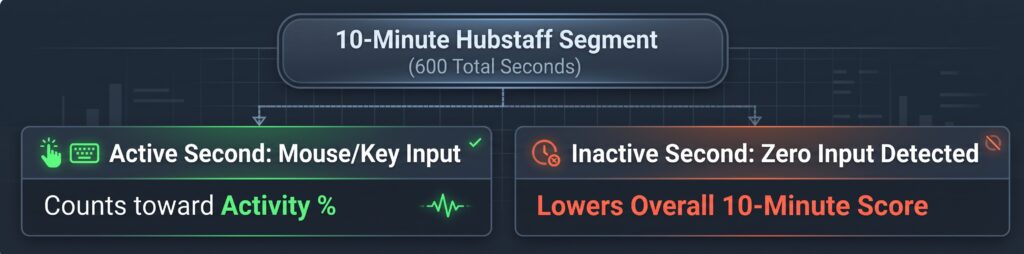
Hubstaff’s official documentation illustrates this clearly: if you type continuously for 30 seconds and then spend the remaining 9 minutes and 30 seconds reading a document or watching an instructional video, your recorded Hubstaff activity percentage for that 10-minute slot will be just 5%.
Two critical rules govern these calculations:
- Excluded Time: Manual time entries, break tracking, and custom projects with activity recording toggled off are excluded from overall activity averages.
- Idle Time Treatment: A segment with 0% input triggers an idle time alert, which Hubstaff automatically flags on employer reports as unworked time.
Why Your Activity Percentage is Low Even When You’re Working
Hubstaff’s official guidance acknowledges that mouse and keyboard volume reflects raw peripheral interaction rather than genuine productivity. Several common professional scenarios naturally yield low input scores:
- Video Meetings & Client Calls: Project managers, consultants, and developers leading or listening to Zoom calls frequently record activity averages between 25% and 35% because talking and listening require zero typing or clicking.
- Reading & Document Review: Analyzing long PDFs, contracts, code pull requests, or research papers typically lands between 40% and 60% activity.
- Design & Creative Work: UI/UX designers, video editors, and illustrators spend extended periods evaluating layouts or conceptualizing ideas, producing much lower input rates than high-volume data entry clerks.
- Training & Research: Watching training videos or webinars produces near-zero input (averaging 5% to 15%).
Numerous remote contractors and virtual assistants report that important strategic discussions with clients are routinely flagged as “idle” simply because the monitoring algorithm relies exclusively on hardware clicks and keypresses.
What is a Good Hubstaff Activity Percentage?
Hubstaff’s FAQ states that an activity rate above 50% is generally considered good, though realistic benchmarks vary widely by industry, role, and task type. Official Hubstaff support articles emphasize that a typical day consisting of emails, reading, and team meetings averages around 50%, explicitly advising employers against setting arbitrary 80%+ quotas for analytical or creative roles.
Proven Fixes That Address the Core Causes
1. Request a Dedicated “Meetings” Project
Hubstaff allows managers and team admins to create dedicated “Calls” or “Meetings” projects with activity recording disabled. Hours logged under this project are still tracked on your timesheet, but low input during meetings won’t drag down your overall daily activity percentage.
2. Customize the Inactivity Timeout Threshold
Hubstaff’s default idle timeout prompt can be adjusted by your administrator to 5, 10, 20 minutes, or a custom threshold. Requesting a role-specific 15- or 20-minute idle threshold gives you necessary breathing room during long reading or whiteboarding sessions.
3. Manage Idle Prompts Correctly
When Hubstaff displays an idle timeout prompt after a period of zero input, you are presented with four choices: Keep Time, Discard Time, Reassign Time, or Stop Timer. Always select Keep Time or Reassign Time for legitimate work completed away from input devices.
4. Add Manual Time with Contextual Evidence
For offline tasks, phone calls, or secondary-device research, use Hubstaff’s manual time feature. Include detailed session notes (e.g., “Client strategy call via phone — see attached calendar invite”) to ensure swift manager approval.
5. Optimize Input Habits During Deep Work
Organize your daily workflow to pair reading or call blocks with active note-taking in your primary workspace window, preventing long stretches of zero input.
⚡ Keep Your Activity Green Without Manual Stress
IdleBuster automatically maintains natural activity levels while you read, take calls, or brainstorm—preventing low percentage scores and unwanted idle pop-ups.
👉 Try IdleBuster 100% Free (Windows & Mac)
The Automated Solution: IdleBuster (Features & Setup)
When job duties require deep research, offline reading, or frequent video meetings, manual input hacks (like repeatedly tapping keys) distract from actual work, while crude hardware USB mouse jigglers fail because they move in obvious straight lines that trackers can detect.
IdleBuster is an advanced, lightweight desktop application for Windows and macOS designed specifically to maintain natural activity levels and keep your computer active during low-input focus periods.
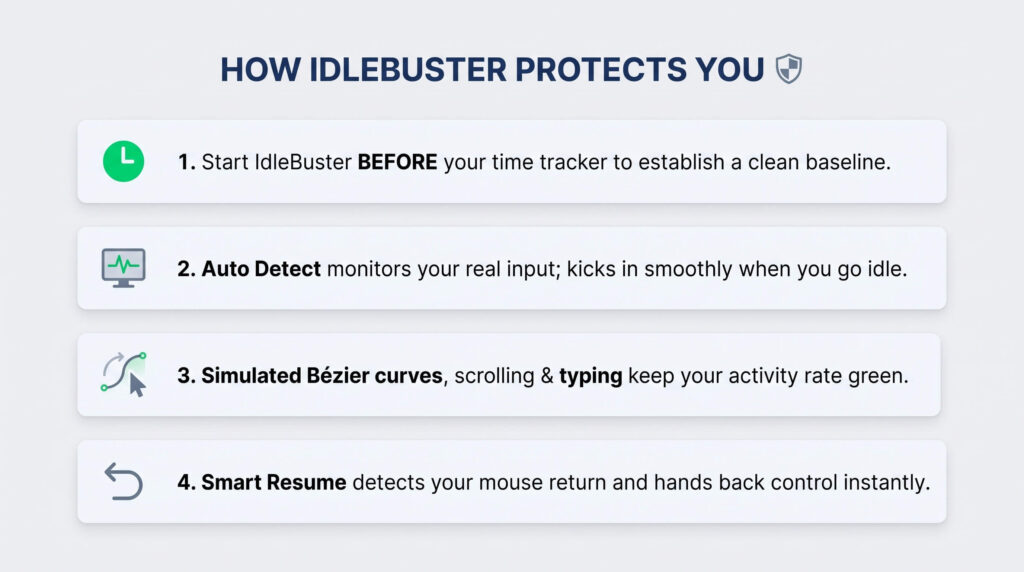
Key Features & Advantages of IdleBuster:
- Human-Like Bézier Curves: Replaces rigid mechanical straight-line movements with randomized mathematical curves that mirror natural human hand physics.
- Auto Detect & Smart Resume: Monitors your real physical input. When you step away or stop typing, IdleBuster smoothly engages. The microsecond you touch your mouse or keyboard, Smart Resume instantly hands back full control with zero lag.
- Bi-Directional Scrolling & Typing Cadence: Generates gentle, randomized page scrolls and realistic typing cadences, ensuring your Hubstaff activity percentage stays healthy (80%+).
- Screen & App Rotation: Periodically cycles through open application windows and browser tabs, ensuring random screenshots look varied and authentic.
- 0% Detection Risk: Operates invisibly at the operating system level with zero taskbar footprint or administrative log trace when launched before your tracker.
- 100% Free Download: No credit card required, no account limits, and lightweight installation for both Windows and Apple Silicon macOS (M1/M2/M3/M4).
How to Discuss Activity Scores with Your Manager
Because Hubstaff’s official stance acknowledges that low activity during calls, reading, and strategy work is completely normal, approaching your manager with data-backed context is highly effective:
- Present Weekly Context: Share a breakdown comparing your recorded activity score against the percentage of time spent on Zoom calls or reviewing long technical specs.
- Reference Official Guidelines: Point out Hubstaff’s own documentation stating that activity percentage measures peripheral input volume rather than project output.
- Propose Solutions: Suggest setting up a zero-activity “Meetings” project or extending your idle timeout threshold to match your role’s analytical demands.
- Highlight Deliverables: Emphasize completed tasks, closed tickets, and client deliverables as the true benchmark of your productivity.
Frequently Asked Questions (FAQ)
How does Hubstaff calculate my activity percentage?
Hubstaff tracks every individual second for keyboard or mouse events, calculating the active vs. inactive ratio to generate a percentage score for each 10-minute segment.
Does Hubstaff record my actual keystrokes?
No. Hubstaff only checks whether keys were pressed during a given second to determine activity; it does not record or store text content or passwords.
Why is my Hubstaff activity score so low during Zoom calls?
Attending video meetings requires listening and speaking rather than clicking or typing. Because Hubstaff only measures input volume, call blocks naturally result in low activity scores (typically 25%–35%).
Can Hubstaff detect physical USB mouse jigglers?
Yes. Physical USB dongles move the cursor in predictable straight lines or back-and-forth patterns that monitoring algorithms flag as artificial. They also fail to simulate typing or app switching, resulting in suspicious activity logs.
How does IdleBuster keep my Hubstaff score green?
IdleBuster generates natural Bézier curve mouse movements, variable scroll events, and subtle typing inputs. This keeps your 10-minute activity segments high while remaining undetectable.
Is IdleBuster free to use?
Yes. IdleBuster is 100% free to download with no credit card required, supporting Windows 10/11 and macOS (including Intel and Apple M-Series chips).
🚀 Take Control of Your Remote Workday
Protect your activity metrics, eliminate idle pop-ups, and focus on real work without tracker anxiety.
👉 Download IdleBuster Free Now (Windows & Mac)
Sources & References
- How is Time Tracked and Calculated in Hubstaff? — Hubstaff Support
- How are activity levels calculated? — Hubstaff Support
- Activity Tracking Overview — Hubstaff Support
- Keep Idle Time Setting — Hubstaff Support
- Hubstaff FAQ & Best Practices Guide — Hubstaff Official
- IdleBuster Technical Specification & Undetectable Protocol — OrientMinds